Profile
Open My Workspace > Profile from the desktop sidebar. On a small screen, use More > My Workspace > Profile, unless Profile is one of your bottom-bar shortcuts.
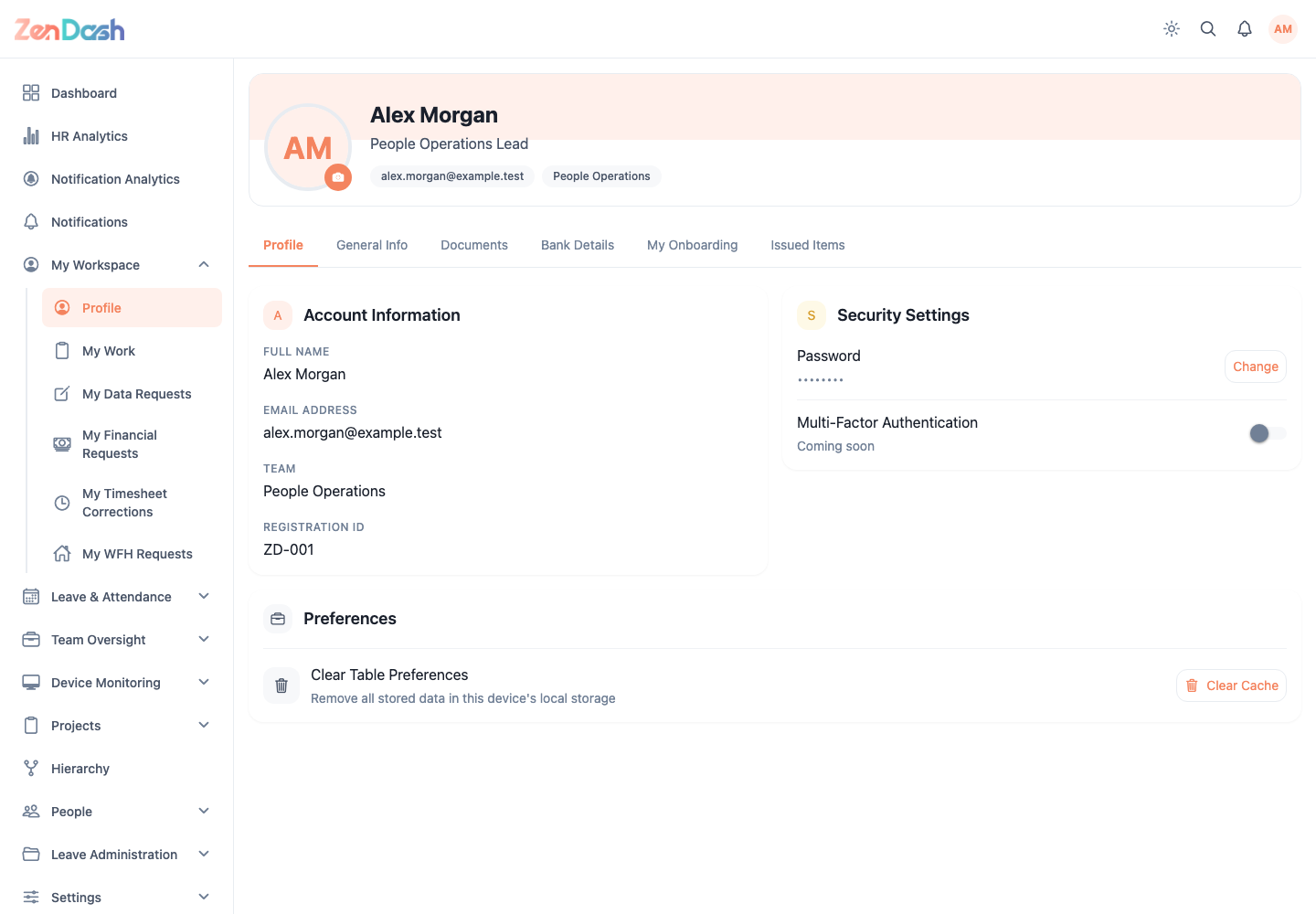
Review your information
The tabs shown depend on your access:
- General Info contains personal and employment details.
- Bank Details contains payment account information.
- Documents lists documents issued to or uploaded by you.
- Onboarding shows tasks assigned through your onboarding plan.
Use the profile header to update your photo. In Documents, select a document to preview or download it. Upload and delete controls only appear when your permission group allows those actions.
Request a data change
Editable personal fields show an edit control. Change the value and submit the request. ZenDash records the proposed change for an authorized reviewer; it does not silently replace approved employee data.
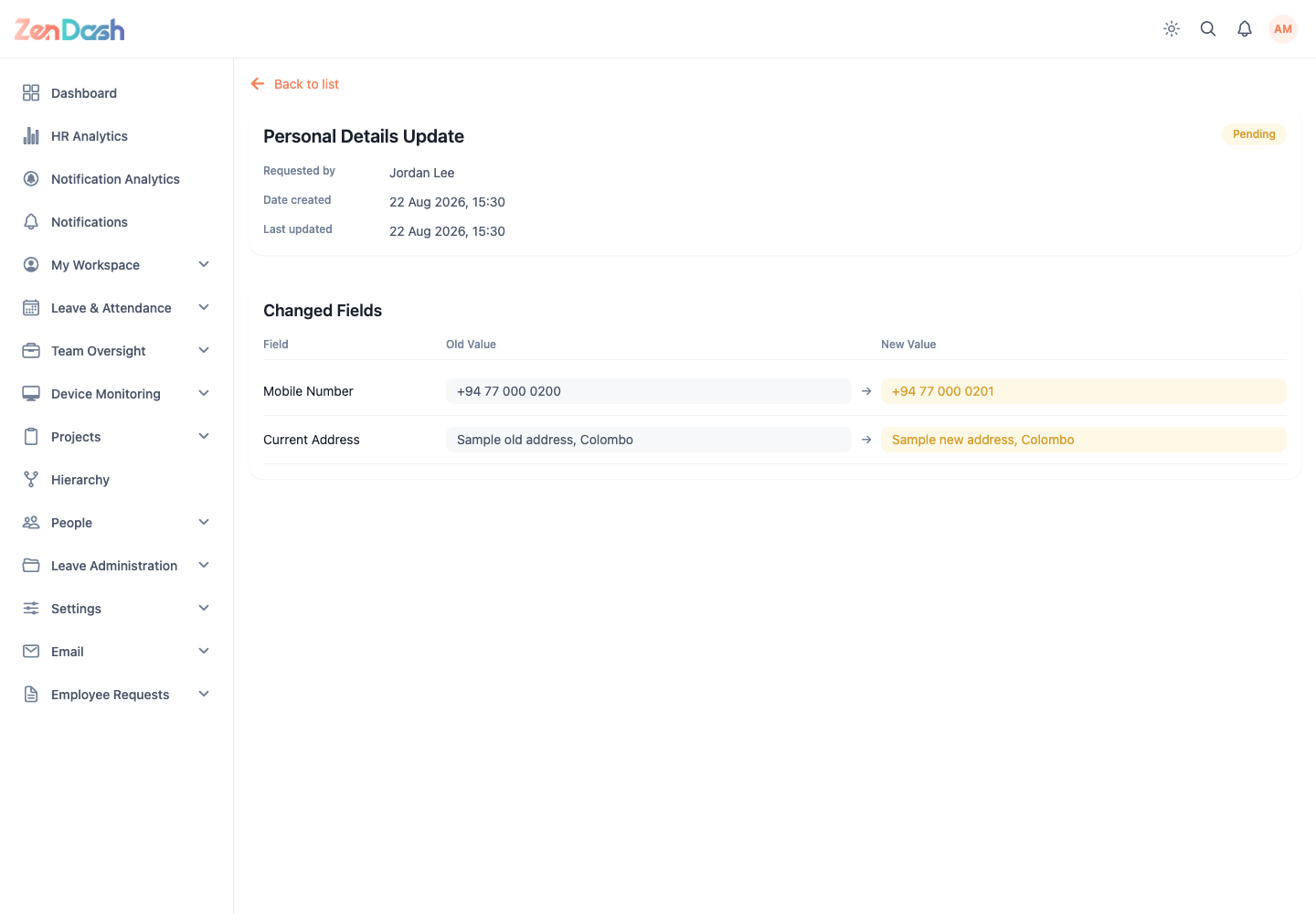
Open My Workspace > My Data Requests to track those submissions. A request detail shows the previous value, proposed value, status, reviewer information, and rejection reason when applicable.
Account and security
The profile includes account preferences and a Change password action. Enter the current password, then the new password and its confirmation. Sign out and contact an administrator if you no longer know the current password.